
Recovrr App Instructions
Using Recovrr
A practical guide to finding meetings, connecting with other Recovrr members, managing your profile, and controlling your privacy and settings.
Recovrr App Instructions
Getting into Recovrr
Sign in, request an account, reset a password, or find the information available before you sign in.
Screenshots automatically follow your browser’s Light or Dark appearance. Nearby Discovery examples show iPhone screens, including when iPad is selected.
Getting Started
The first screens and the app-wide navigation model.
Getting started
Three useful places to begin
The Welcome screen is a short orientation for a new account. Its three choices take you to your profile, the meeting Map, or the Network area for finding other Recovrr members.
You can return to this screen later by choosing Get Started from About, or by tapping the large reversed-R Recovrr logo on the Home tab.
Navigation
Use the main menu from any primary tab
The hamburger menu is available from the main tab screens. It provides direct access to Home, My Profile, Settings, About, and Log Out.
A WELCOME! item appears for a new account until the Welcome screen has been viewed for the first time. Choosing Home refreshes the Home data.
Home
Your dashboard for nearby meetings, connection activity, and notifications.
Home
See what your connections are attending
Home is Recovrr’s dashboard after you sign in. When connections have indicated that they will attend meetings in the next couple of days, those people and meetings can appear in the Connections view.
Tap a person to open that member’s profile. If you have marked meetings that you attend, a My Next Meeting header may also appear.
Pull down on Home to refresh member information and current notifications. Refreshing preserves your choices to read or ignore notifications. If someone has unblocked you, this refresh can make their Profile available again; appearing in In Person also requires current discoverability and nearby range.
Home
Use the quick Nearby Meetings list
Nearby Meetings shows a time-ordered sample around your current location. It is not a complete list. Recovrr expands the search only until it finds enough meetings. The area may be small in a city and much larger in a rural area.
If Location Services are unavailable, Recovrr uses your last known location. Tap a meeting to open Meeting Details. Use the Map to explore a wider area.
Home
Watch the notification indicator
The bell in the Home header reflects your visible notifications. A filled bell with a badge means unread notifications; a filled bell without a badge means there are notifications but all are read; an outline bell means there are no visible notifications.
Tap the bell to switch directly to the Notifications tab.
Finding Meetings
Use the Map, weekday selector, meeting list, and destination search.
Map basics
Start with meetings near you
When you open the Map tab, Recovrr begins near your current location and expands the search until it has enough meetings to establish a useful map region. The visible meetings are then shown as markers.
You can pan or zoom the map at any time. After the map region changes, Recovrr searches the new visible area and updates the markers automatically.
Meeting list
View the meetings as a list
Tap the list button beside the weekday controls to see the meetings represented in the current map region. The list can be sorted by distance from your current location or by the next meeting start time.
Tap a meeting in the list to open its full Meeting Details screen. When you return, the list is restored.
Weekday selector
Show only the days you want
The weekday buttons at the top of the Map are toggles. Tap a day to include or exclude meetings that gather on that day. The map updates immediately.
Two useful shortcuts are deliberately less obvious: long-press a weekday to select that day by itself, and double-tap the weekday selector to toggle all days on or off.
Destination search
Find meetings somewhere else
Tap the magnifying-glass button to enter Destination Mode. Type a place, such as a city or town, and choose Go on the keyboard. Recovrr moves the map to that location and runs a new nearby-meetings search there.
Destination Mode temporarily replaces the weekday controls. All weekdays are enabled for the new search. You can dismiss Destination Mode without moving the map by tapping the magnifying-glass button again or tapping the map.
Meeting markers
Open a meeting from the map
A single-diamond marker represents one meeting. Tap it to display that meeting, then tap the meeting row to open Meeting Details.
Two overlapping diamonds indicate multiple meetings that are too close together to show separately at the current zoom level. Tap the marker to choose from the meetings in that location.
Nearby members
See Recovrr members in the area
The Map list can also show nearby Recovrr members who have chosen to make their approximate location available.
Tap a member to open their profile.
Virtual Meetings
Find virtual NA meetings with We Are Never Alone, then open them directly in Recovrr.
Finding virtual meetings
Use We Are Never Alone
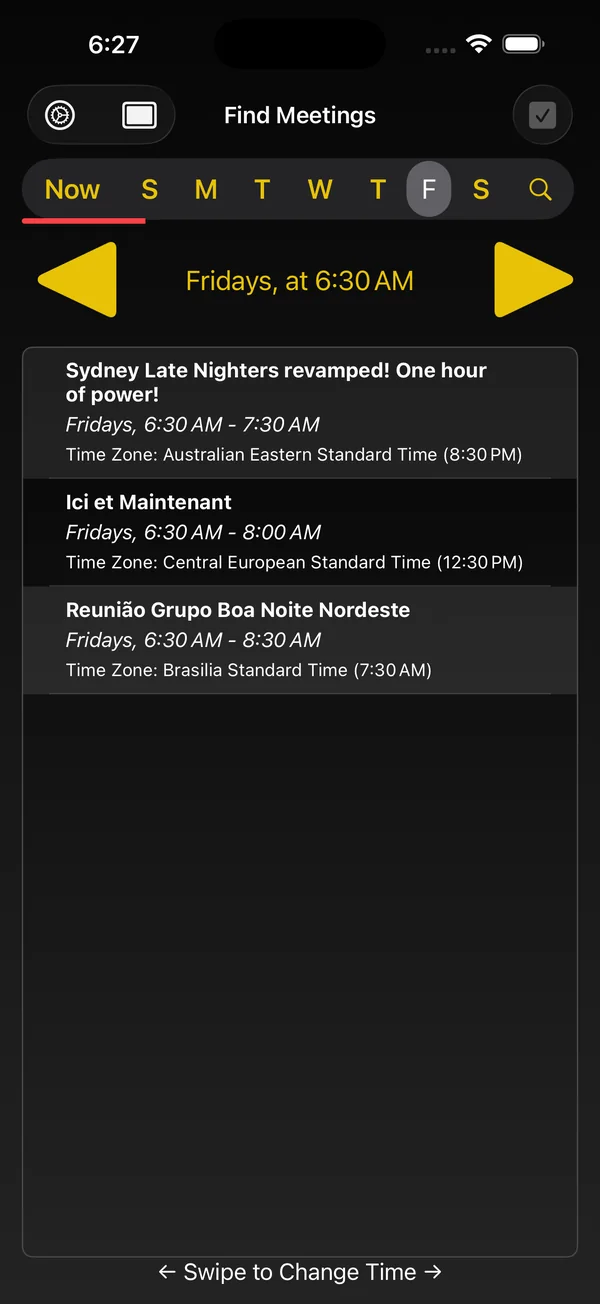
Recovrr 2.x can display and work with virtual and hybrid meetings, but it no longer includes the virtual-meeting search that was present in Recovrr 1.x. To find virtual meetings, we recommend We Are Never Alone, a separate app from Little Green Viper Software Development LLC that is designed specifically for finding and working with virtual NA meetings.
We Are Never Alone presents virtual meetings according to your local time and provides controls for browsing by day and time. Once you find a meeting you want, you can hand it directly to Recovrr.
Open in Recovrr
Hand the meeting directly to Recovrr
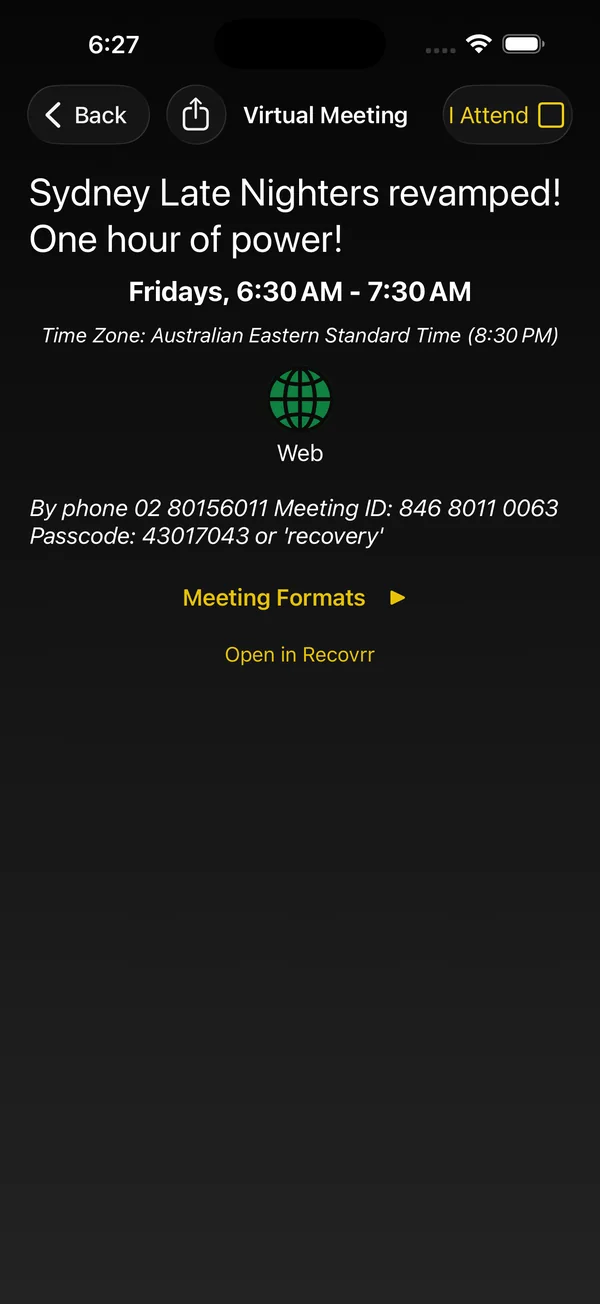
Open a meeting in We Are Never Alone and tap Open in Recovrr. If Recovrr is installed, We Are Never Alone uses a deep link containing the meeting identity to open Recovrr directly to that meeting’s Meeting Details screen.
The handoff works because the two apps use compatible BMLT meeting identifiers. The meeting identity is included in the deep link, so you do not need to search for the meeting again in Recovrr.
Shared meeting identity
Keep using the meeting in either app
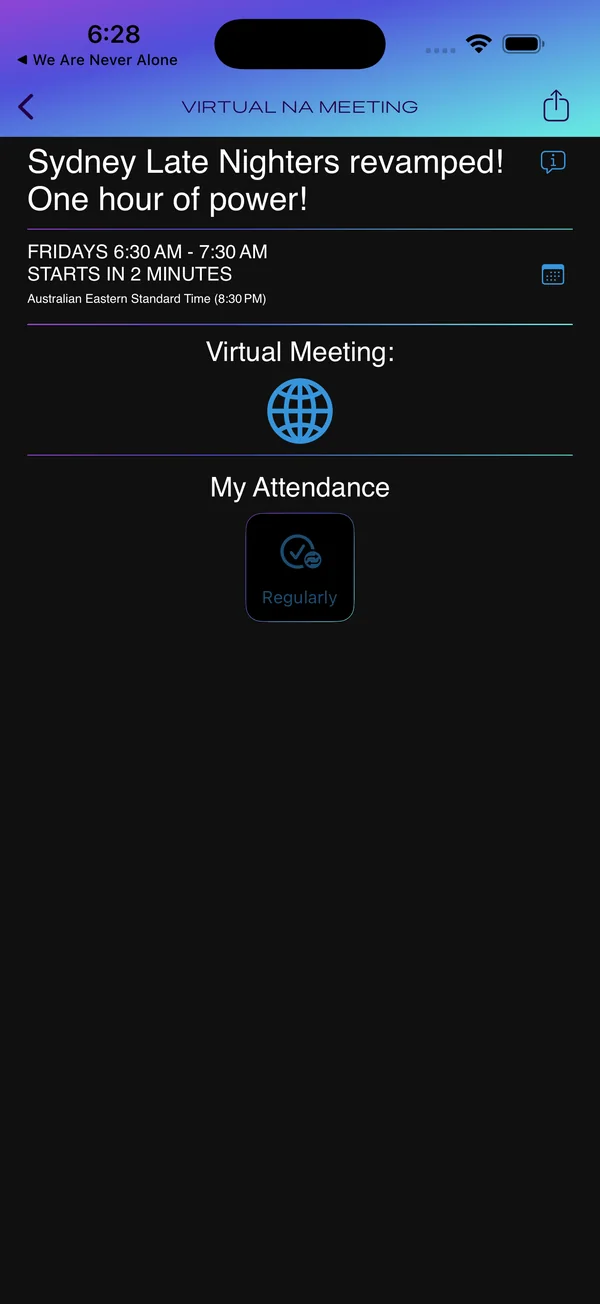
Because the meeting identity is shared, the same virtual meeting can participate in app features that use meeting IDs. For example, a virtual meeting can be included in meeting-attendance information.
Recovrr remains the place for Recovrr-specific member relationships, privacy controls, and profile features; We Are Never Alone remains the specialized tool for finding virtual meetings.
Meeting data
Virtual-meeting listings can differ between services
Virtual NA meeting lists come from several independent sources. They may not contain the same meetings, and one source may be more current than another.
Recovrr gets its meeting data from BMLT. Independent NA service bodies and BMLT data maintainers manage the source records. Recovrr displays that information but cannot change the authoritative records.
We Are Never Alone uses compatible BMLT meeting identities, which allows a meeting selected there to be handed directly to Recovrr.
Meeting Details
Understand in-person, virtual, and hybrid meeting information.
Meeting details
Read the complete meeting information
The Meeting Details screen opens from Home, the Map, or a meeting listed in another member’s profile. It can show the meeting name and formats, start and end time, timezone, physical address, directions, connections who attend, your attendance choices, and a map.
Tap the meeting-name row to see formats and additional information. Tap the time row to add a repeating calendar event. Tap the address row to open directions in Apple Maps, or Google Maps if you have selected that preference.
Meeting types
Virtual and hybrid meetings
A pure virtual meeting replaces the physical-location elements with ways to join remotely. Depending on the information supplied by the meeting, Recovrr can offer a direct app link, a Web link, or telephone dial-in.
A hybrid meeting combines the in-person address and map with the virtual-connection controls. For pure virtual meetings, the main meeting time is shown in your current timezone; Recovrr can also show the meeting’s local time.
Formats
See formats and additional meeting information
Tap the meeting-name/formats row to open the formats panel. The panel shows the format codes and any additional information supplied with the meeting.
Format text is displayed as supplied by the meeting source, so it may be in another language and the codes can vary by region.
Sharing
Print or share meeting details
Use the action button in the navigation bar to export a meeting. You can print a meeting summary or share the generated information through the system share interface.
The shared material can include a PDF representation and a link to the meeting.
Finding and Connecting With Members
Use Network to discover members and manage connection relationships.
Connections
Manage people you are connected with
The Network tab groups members by relationship. Connected contains full, reciprocal connections. Connections can share additional information such as meeting attendance and a phone number, if supplied.
Tap a row to open that member’s profile. Tap the relationship button at the trailing edge of a row to change the relationship—for example, disconnect or block the member.
Pending
Handle connection requests
Pending includes both requests you sent and requests another member sent to you. Requests received from another member are highlighted in magenta.
A received request can be accepted to create a full connection or blocked. A request you sent can be withdrawn.
Blocked
Keep blocked members out of your normal lists
Blocking works in both directions. When you block another member, you can no longer see that member through Recovrr, and they can no longer see you. Blocked members do not appear in your normal searches, suggestions, or lists. The Blocked view is the one place where you can still see the members you have blocked.
Use the relationship control to unblock a member. Recovrr restores the appropriate relationship state based on what existed before the block.
Find Others
Discover suggested members
The Suggested view shows members in your general area who allow their location to be used for discovery and with whom you do not already have a relationship.
Tap a member to open their profile, or use the relationship button to send a connection request or block the member.
Suggested is different from In Person, which uses nearby devices instead of geographic member discovery.
Search
Find a member by display name
Switch Find Others to Search and start typing a display name. The list filters immediately using a case-insensitive, starts-with search.
Search can find members who hide their location, because it searches by display name rather than proximity. Search results can include people with whom you already have a relationship.
Choosing Search shows and focuses the search field. Your Nearby Discovery setting does not affect display-name Search.
Find Others · In Person
Find members who are close by
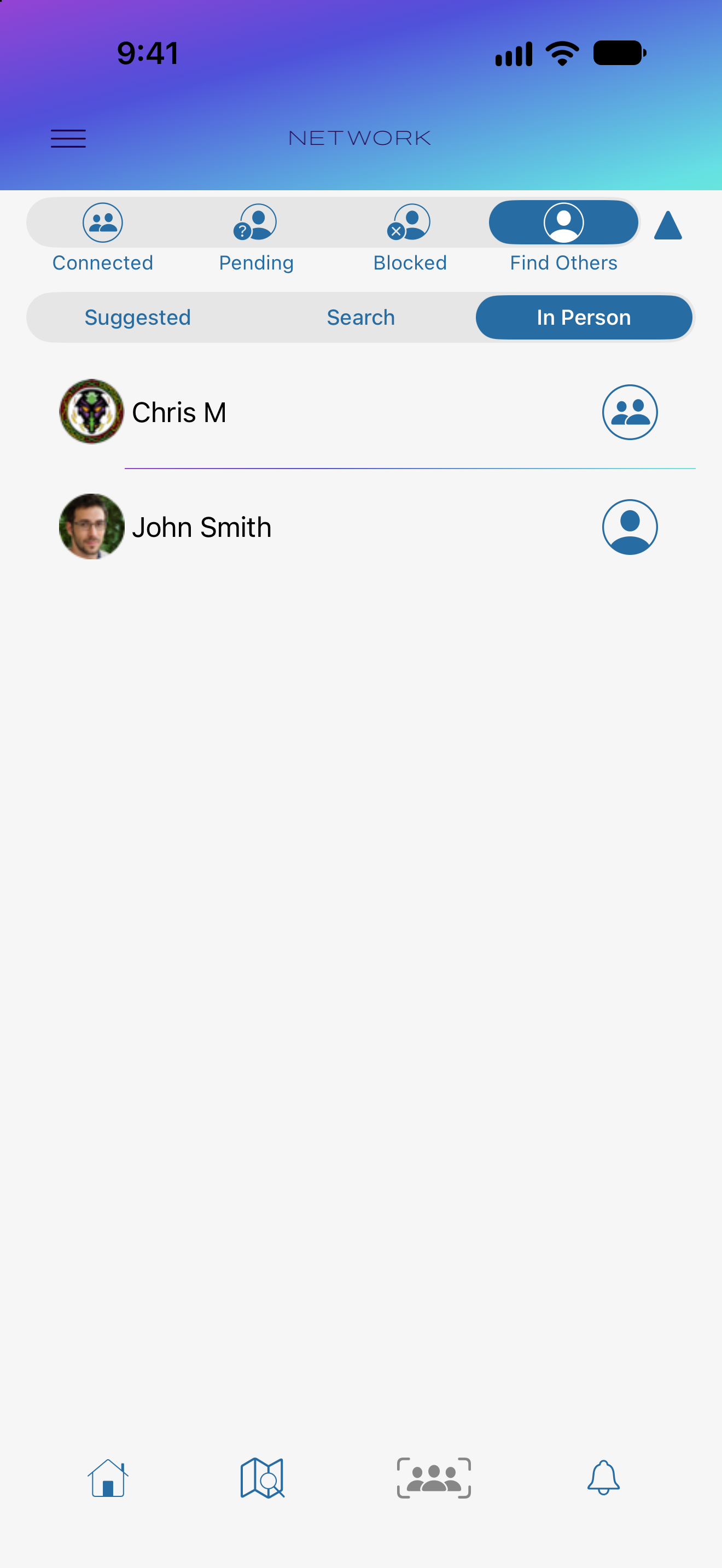
On supported devices, open Network → Find Others → In Person to find discoverable Recovrr members within about 5 meters (16 feet). This is separate from Suggested and the Map’s geographic member list.
- Both people should have Recovrr running. Keep the apps visible, keep Wi-Fi and Bluetooth on, and allow Nearby Interaction and Local Network access if asked.
- The person who wants to be found enables Always Allow Nearby Discovery in Settings, or Allow Nearby Discovery Once in My Profile.
- The person looking opens In Person. Their own discoverability can remain Off. Allow time for the list to update.
- Tap a member to open their Profile. The nearby information shows an approximate distance in your device’s measurement units.
Each row shows a display name, an avatar if supplied, and the current relationship. Members with pending requests and members you already connect with can appear too.
A member normally disappears when their discoverability is Off or they are no longer within nearby range. An active connection interaction can temporarily keep the row visible until it ends. Blocking removes the member.
Send a request
Ask a nearby member to connect
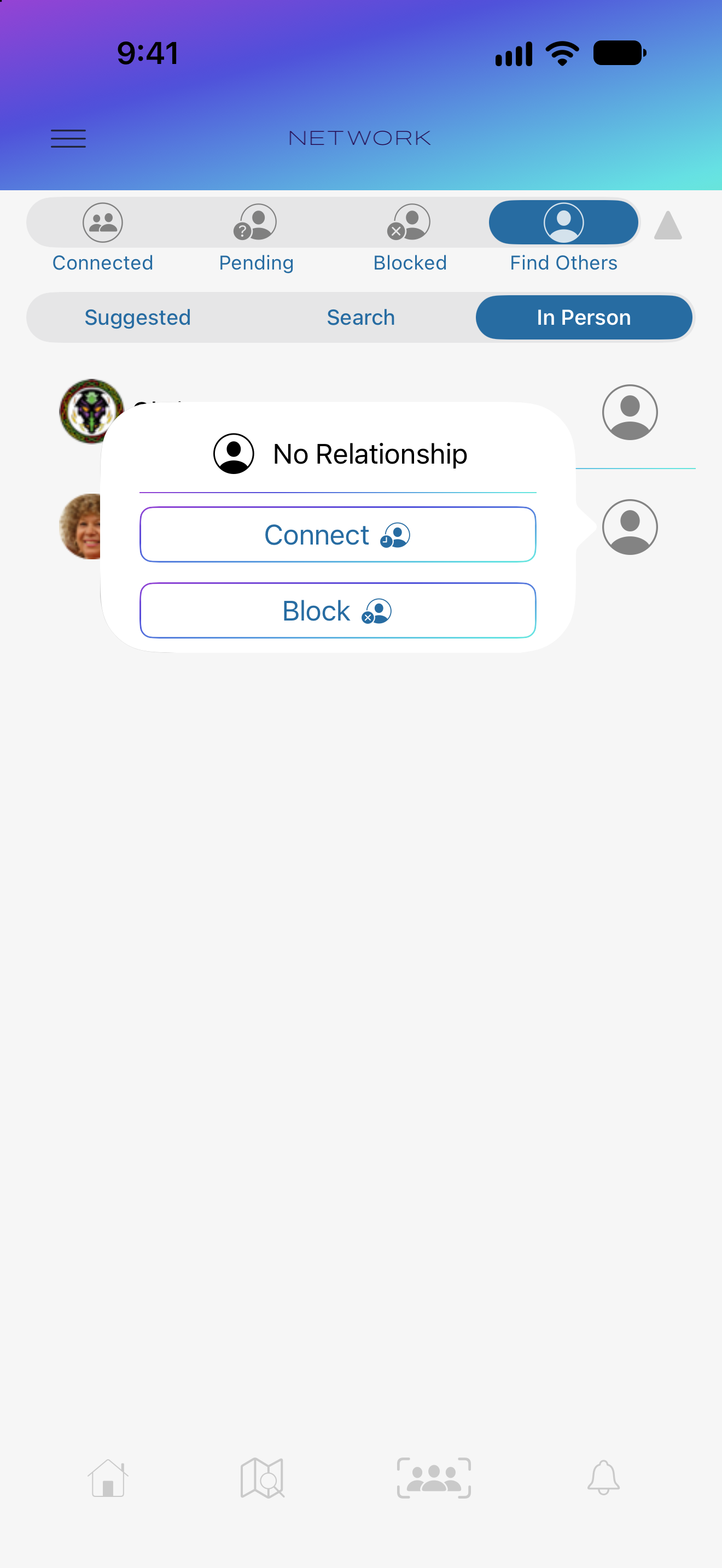
Open the member’s Profile, choose Connect, then choose Connect in the relationship popover. This sends a normal connection request through Recovrr and also invites the nearby member to respond in the app.
The relationship control is also available from the icon at the right of a member’s row. A pending or connected relationship is shown with its corresponding icon.
Nearby detection happens directly between devices. Loading Profiles and changing relationships need internet access.
Incoming nearby request
Choose how to respond
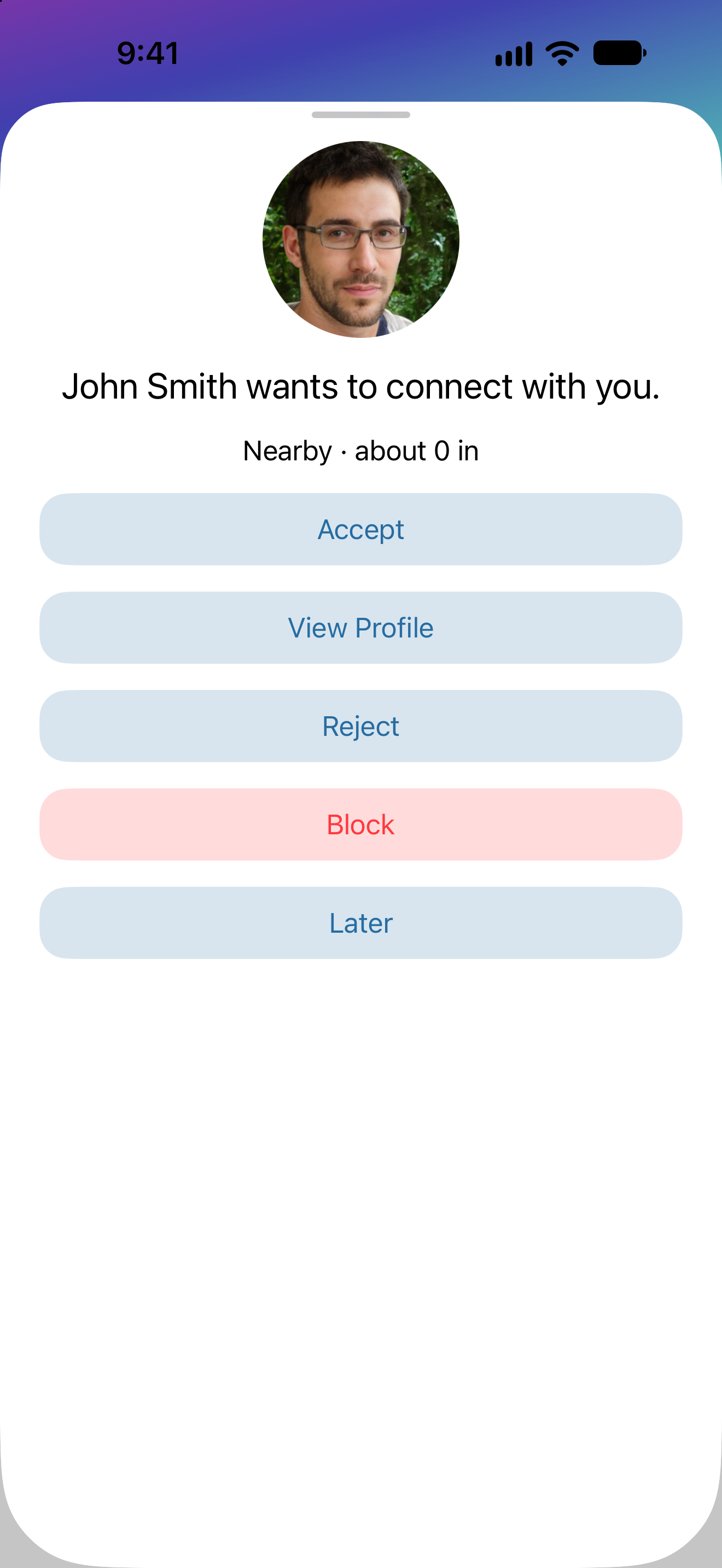
The recipient sees an in-app request with the sender’s display name, avatar and clean date if supplied, and approximate nearby distance when available.
- Accept: confirm to complete the connection. The sender is notified, and the relationship updates.
- View Profile: inspect the sender’s Profile before deciding. The nearby interaction stays active; return to the request from the Profile.
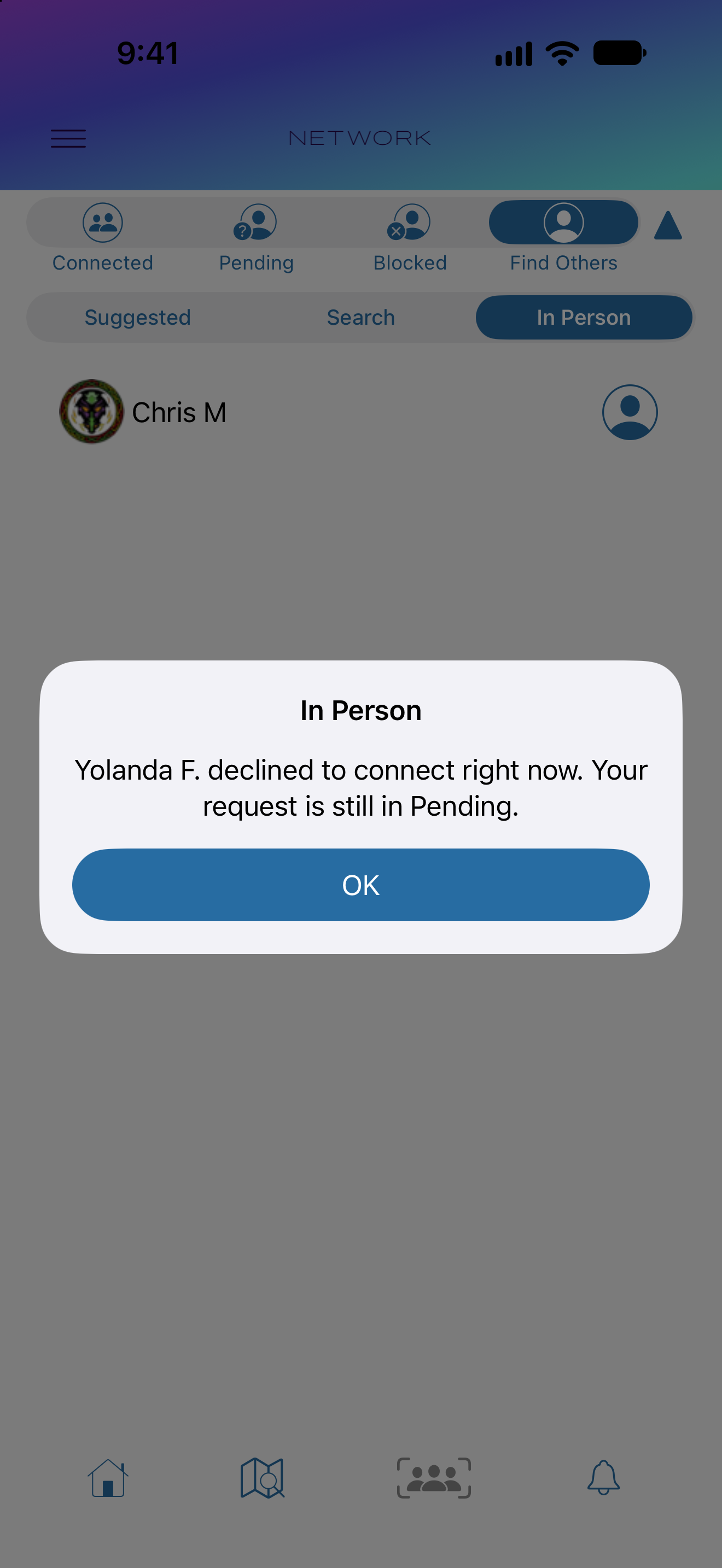
- Reject: confirm to decline the immediate invitation. The sender is informed, but the request remains in Pending on both devices.
- Block: confirm to block the member. They receive no block notification and you disappear from their normal lists.
- Later: postpone the decision. The request stays in Pending. Dismissing the request sheet has the same effect.
An interaction in progress
Review the Profile, then return to the request
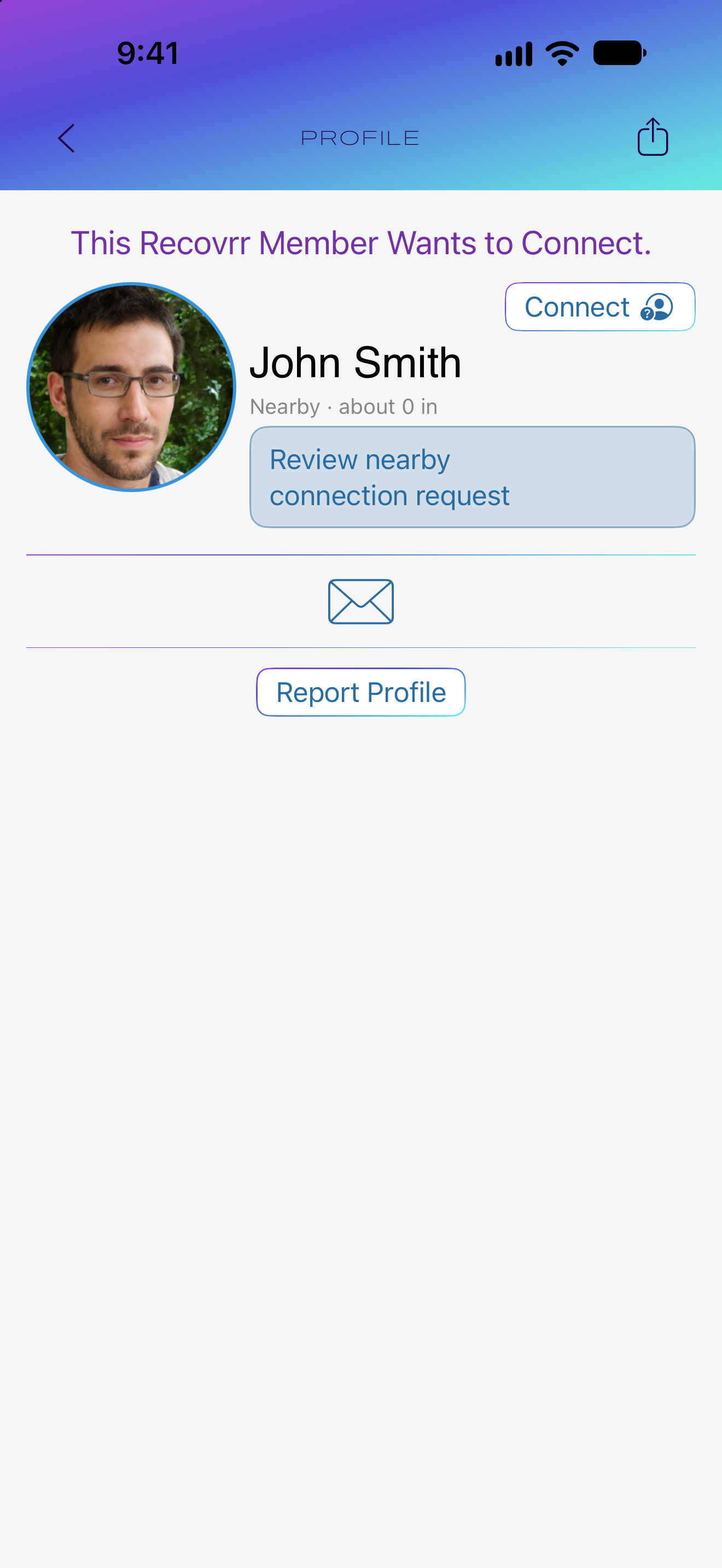
Choose View Profile on the incoming request to learn more about the member. The Profile identifies the pending connection request and continues to show nearby distance when available.
Tap Review nearby connection request to reopen the request sheet and choose how to respond. The separate Nearby distance text is information, not a button.
Viewing the Profile does not end the interaction or use up One-Time discoverability. If the interaction ends while you are viewing it, use Pending or Notifications to respond to any request that remains.
Confirm your choice
Accept, Reject, and Block ask for confirmation
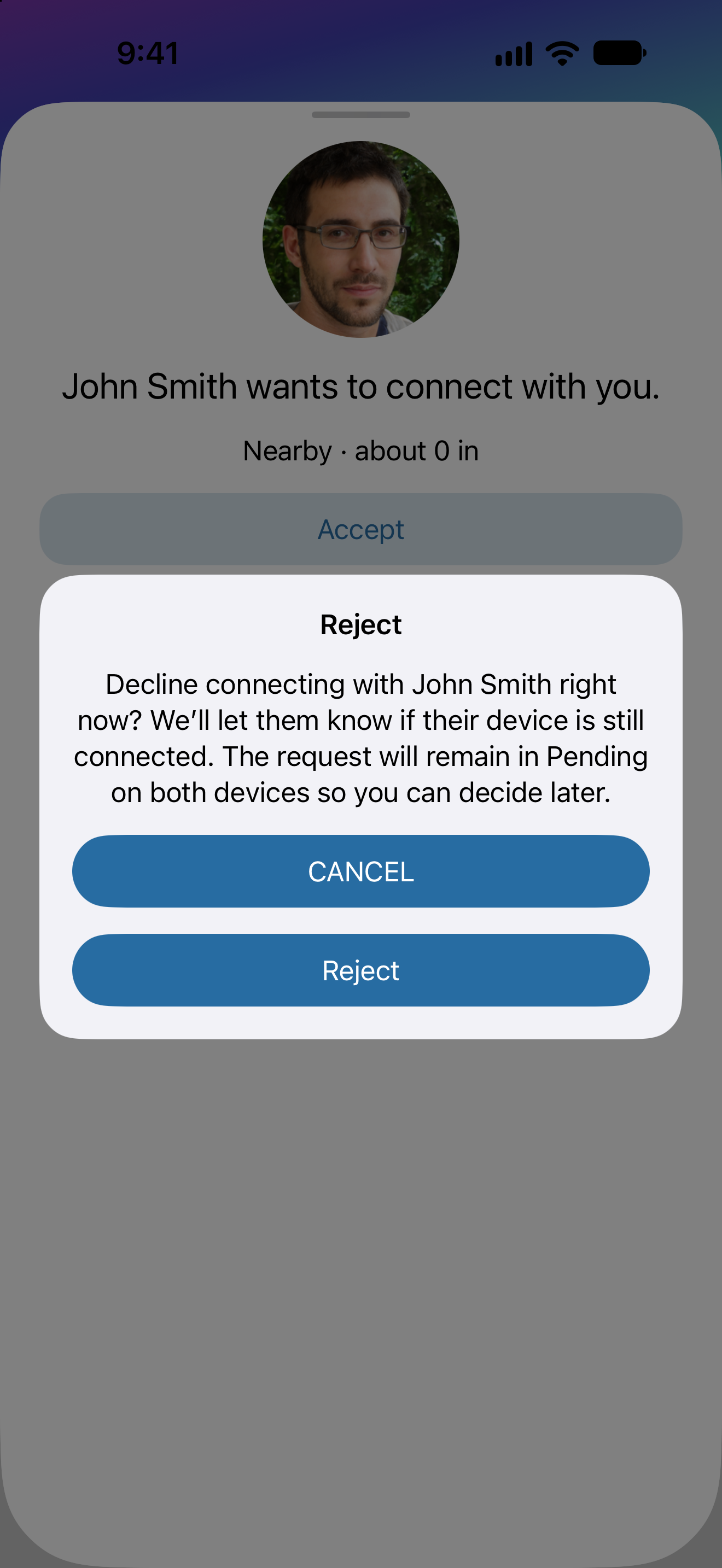
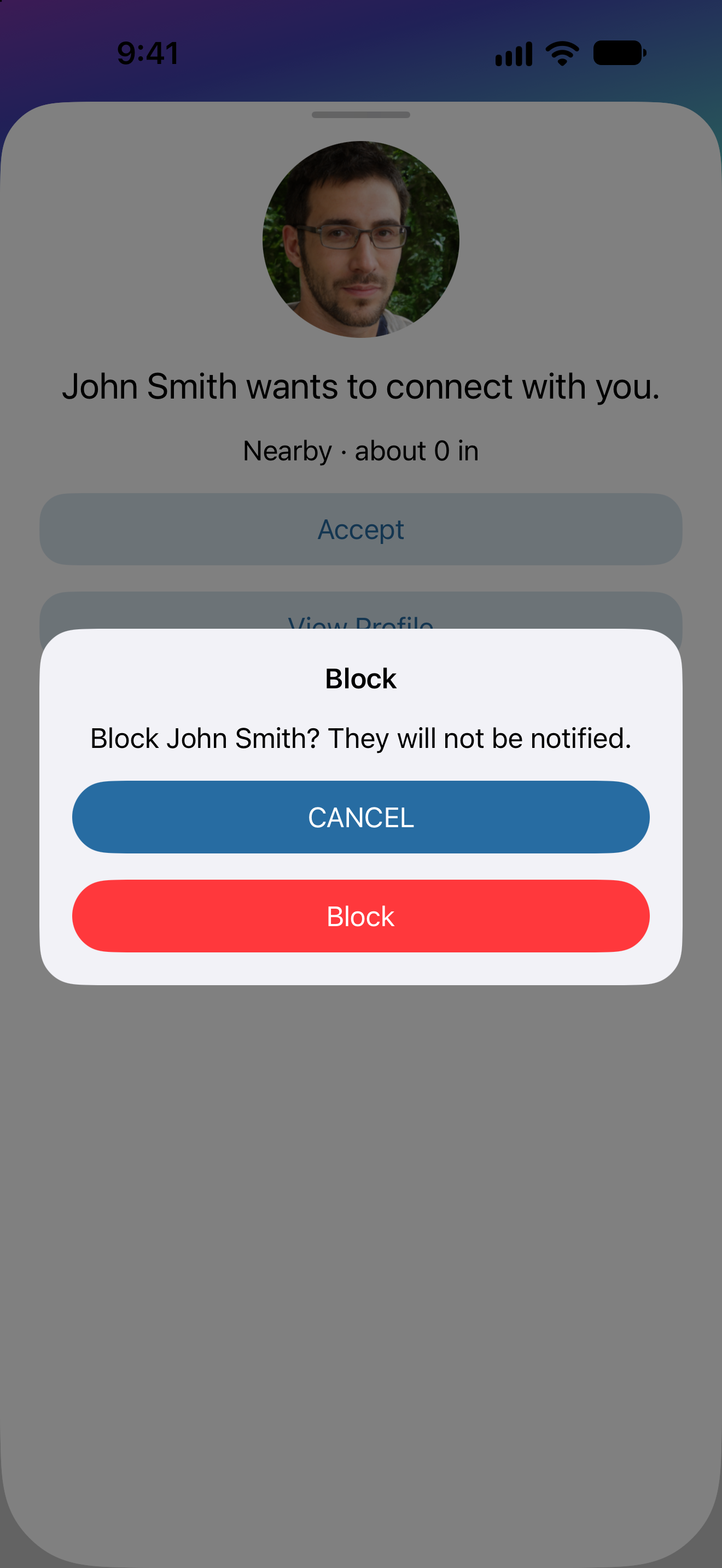
After choosing Accept, Reject, or Block, check the confirmation before continuing. Cancel returns you to the request without applying that choice.
Reject declines this immediate invitation and leaves the request pending. Block prevents contact and does not tell the other member that you blocked them.
After the response
Check the updated relationship
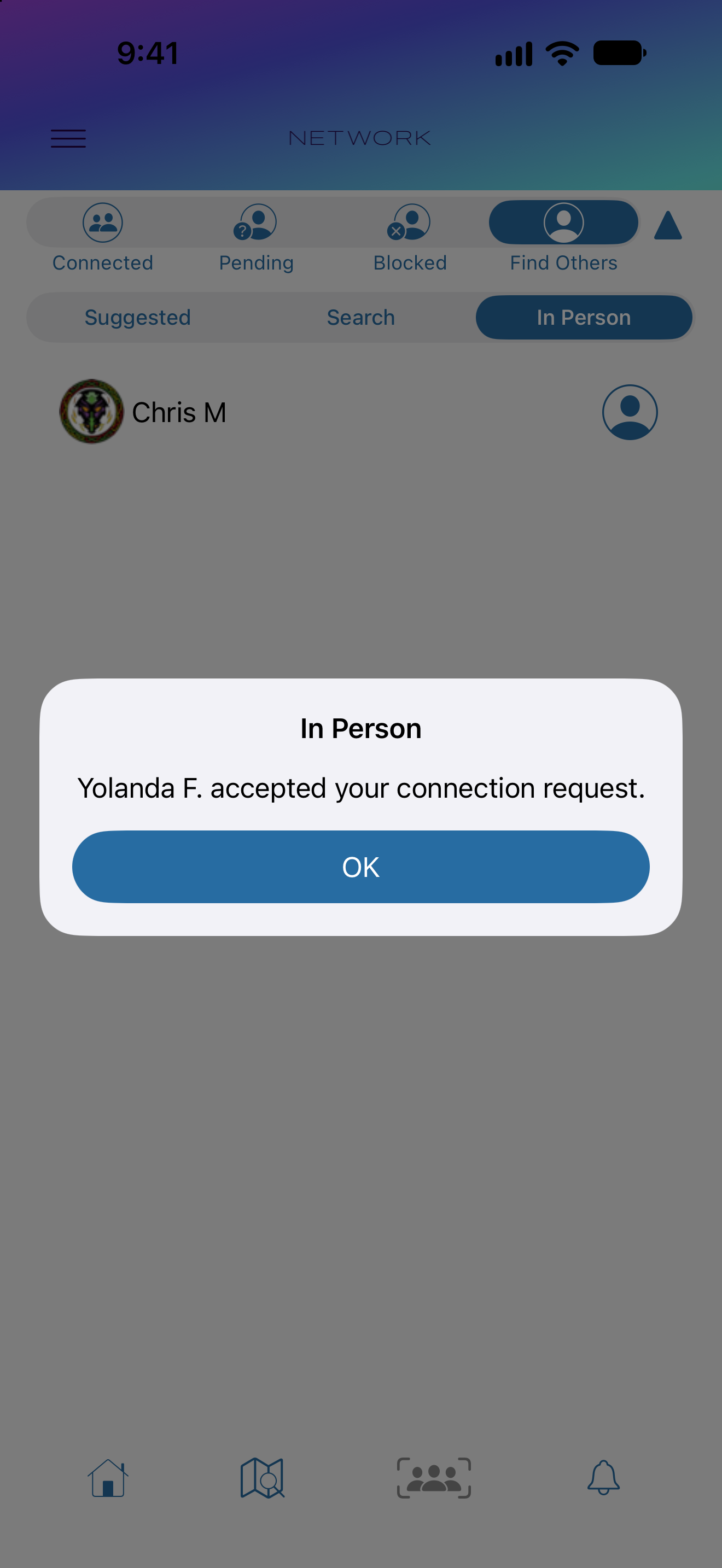
Acceptance completes the connection, and the sender receives an acceptance message. Rejection tells the sender that the immediate invitation was declined and returns them to In Person; the request remains in Pending on both devices.
While the nearby interaction is active, the ordinary connection-request notification is held back. After Reject, Later, or an interruption, the still-pending request becomes available in Notifications so the recipient can respond later.
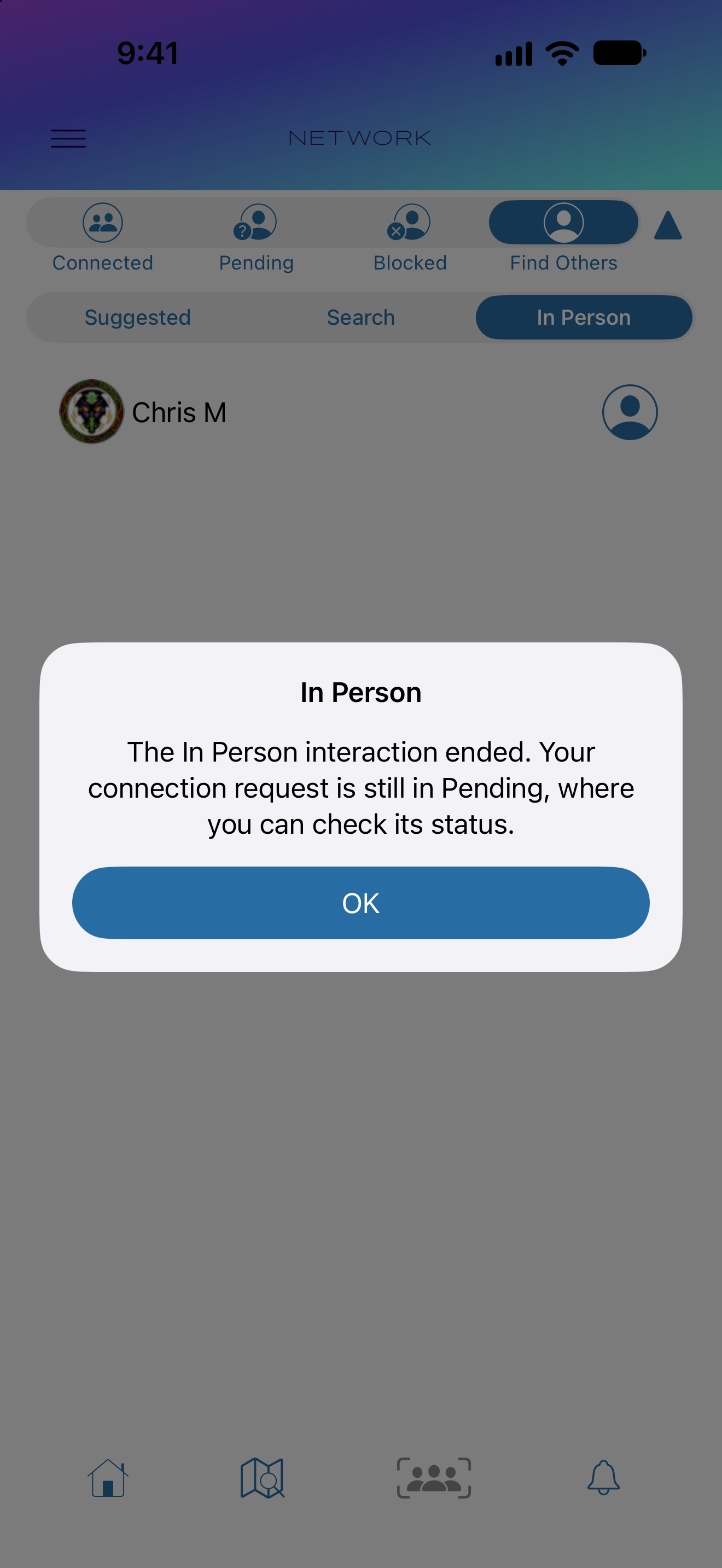
If the recipient used One-Time discoverability, it turns Off when the interaction ends. They then disappear from In Person. With Always enabled, they can remain listed while nearby.
Nearby Discovery help
If a member does not appear
Check that the other person has discoverability enabled, both apps are visible, and the devices are close together. Keep Wi-Fi and Bluetooth on. In the iOS Settings app, check Recovrr’s Nearby Interaction and Local Network permissions if access was denied. Discovery can take a little time, and walls, obstructions, or interference can interrupt it.
Moving too far apart or leaving the app can end an interaction. If One-Time was being used for that interaction, it turns Off. Turn it on again for another attempt. If a request already reached the service, check Pending before sending another.
If a member has just unblocked you, pull down on Home to reload member information, then return to In Person. The other member must still be discoverable and within range. Follow any error message shown by Recovrr if a connection change could not be confirmed.
If the sender withdraws a pending request while the devices have an active nearby link, the recipient’s lists and badges can update quietly. There is no withdrawal alert. Otherwise, pull down on Home to refresh. Refreshing preserves choices to read or ignore notifications.
Profiles and Connections
View member information, communicate, and use relationship and safety controls.
Profiles
See what changes when you connect
These screens show the same member. Before a full connection, you generally see the avatar, display name, tagline, and clean date that the member has provided.
After you connect, chosen meeting attendance and phone or messaging controls may also appear. Email remains private. Recovrr can relay email without showing either member’s account address.
Connections
Change the relationship from a profile
The relationship button on another member’s profile provides the same relationship actions available in Network.
If you disconnect a full connection, connection-only information such as meeting attendance and phone/message controls is removed. Accepting a received request can make that information available.
Communication
Send anonymized email
Tap the email button on another member’s profile to compose a message. Recovrr sends it from a Recovrr no-reply address instead of exposing your email address.
The recipient’s copy includes a Recovrr link that can bring them back to your profile, where they can send a response through the same mechanism.
Clean date
Add an anniversary to your calendar
If a member has supplied a clean date, tapping it shows a clean-time summary. The calendar control next to the date lets you create an event for the member’s next anniversary.
A yearly anniversary can be created as a repeating annual event; shorter milestones are created as one-time events.
Safety controls
Report or block a member
Choose Report Profile when you need to report a concern or block a member. You can block without sending a report, or open the report form and send information to Recovrr administrators.
The report form can also block the member as part of the same action.
Sharing
Share a profile
The action button on another member’s profile lets you print the public profile information or share a universal link to that profile through Messages, Mail, or another system share destination.
Only information that is public for that profile is included in printed output.
Your Profile
Control your own profile, clean date, avatar, and QR-code connection.
Your profile
Review the profile other members can see
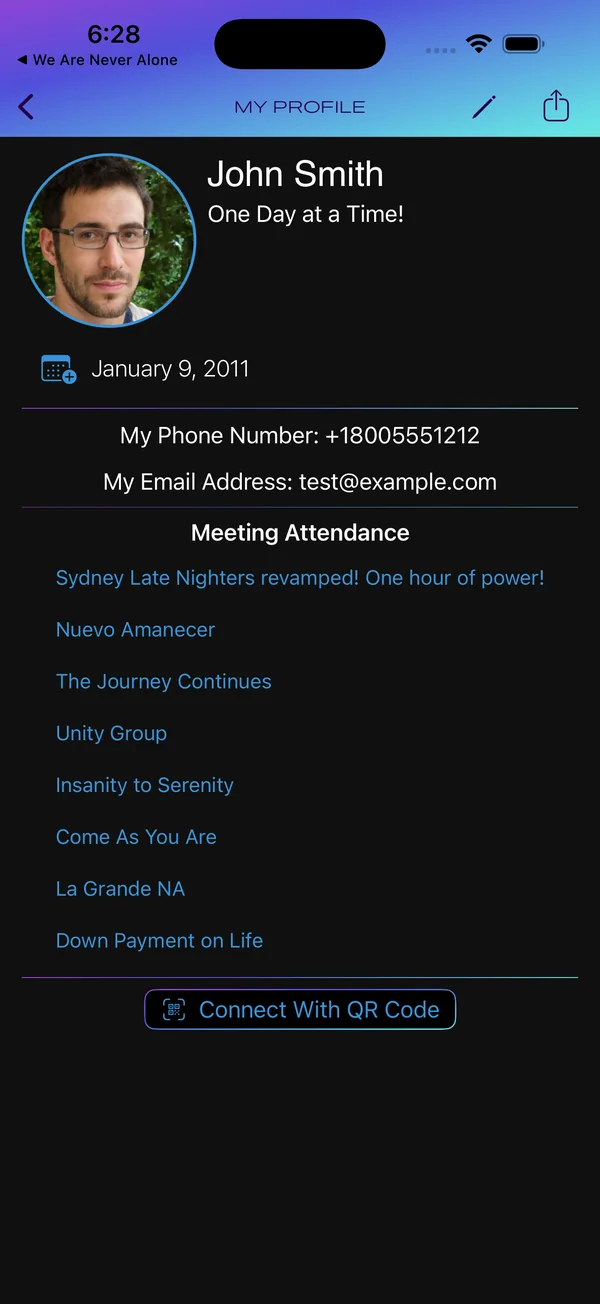
My Profile shows your own information. Unlike another member’s profile, it displays your email address rather than the anonymized-email button, and it shows your phone number if you have supplied one.
Tap the pencil button in the navigation bar to edit the profile.
My Profile · Nearby Discovery
Be discoverable for one interaction
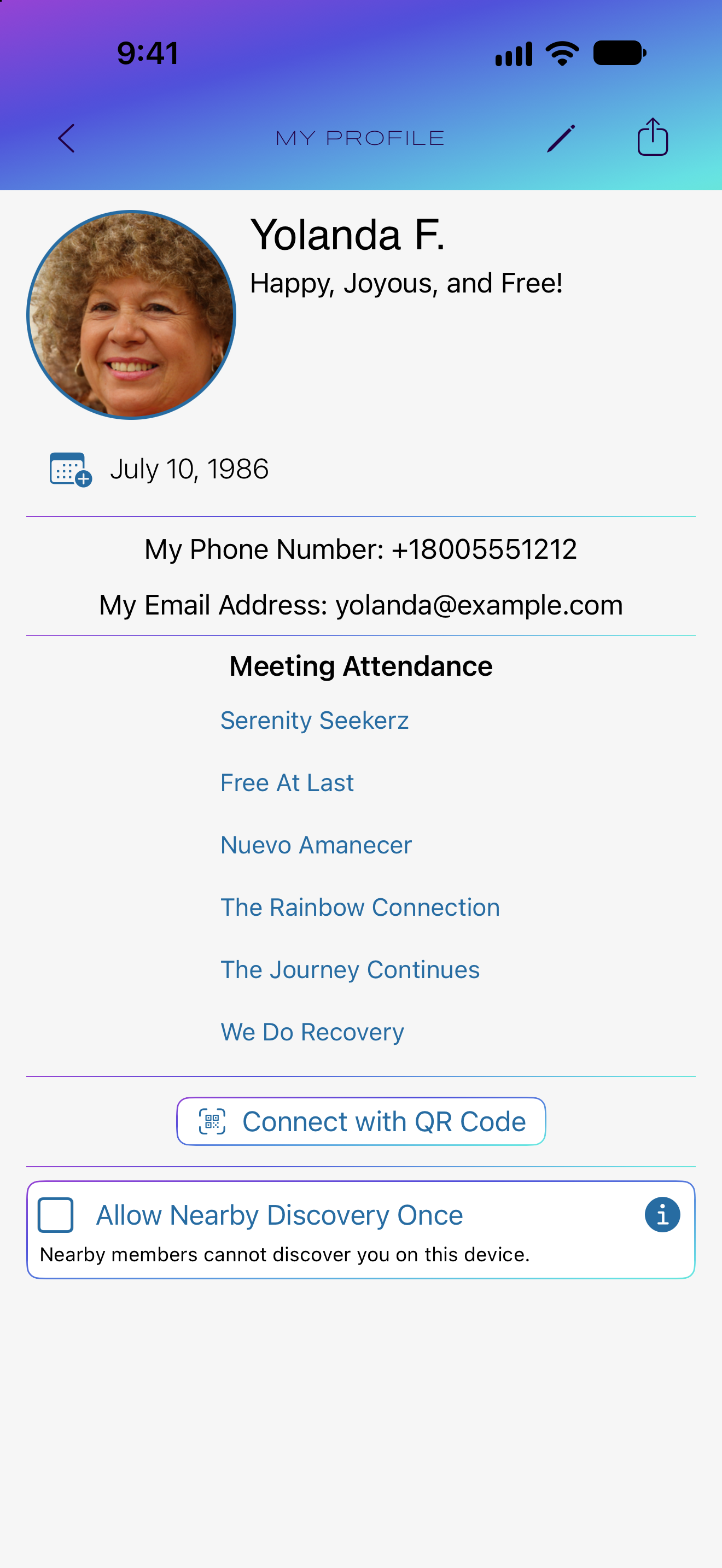
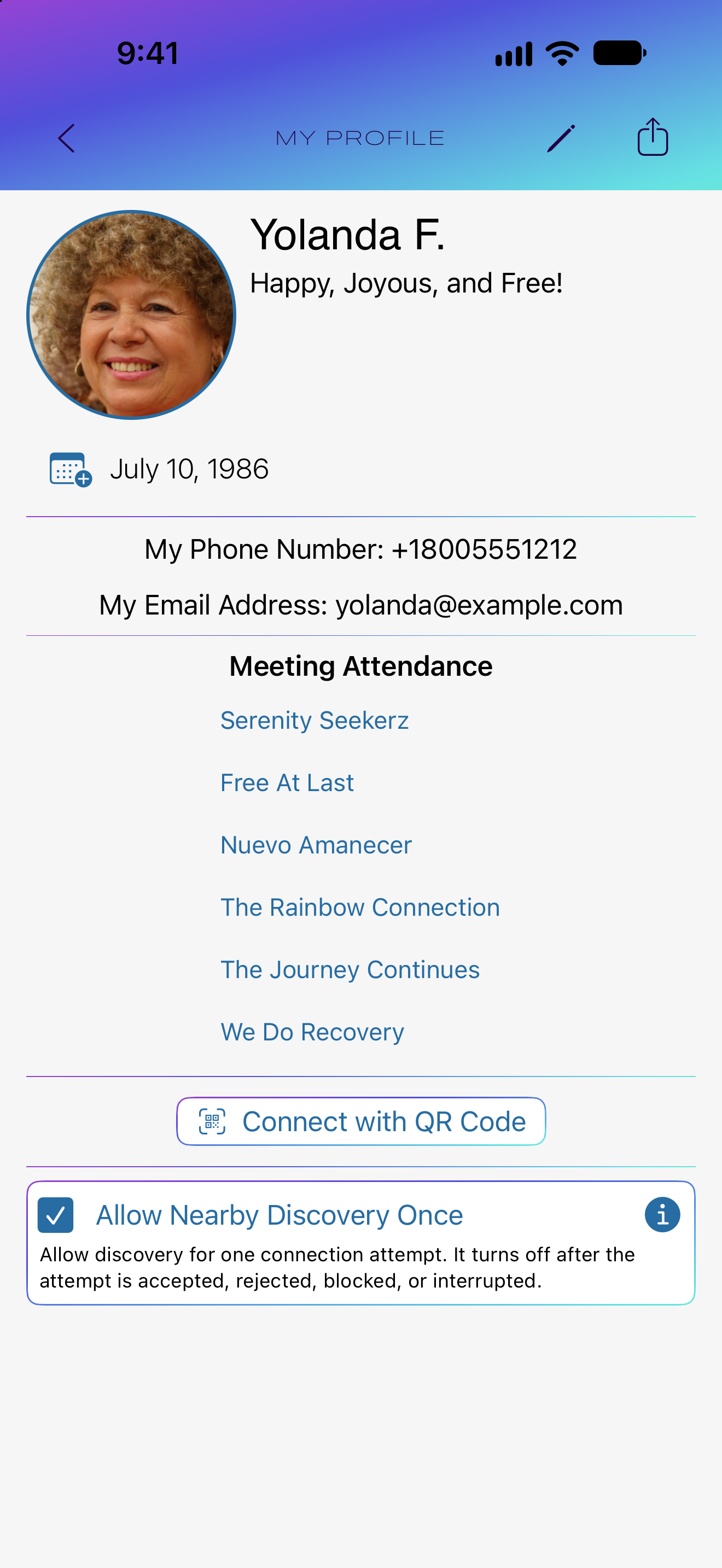
At the bottom of My Profile, turn on Allow Nearby Discovery Once to let nearby members find you for one connection interaction. Turn it off to stop being discoverable.
One-Time stays on while you are considering the request. It turns off after acceptance, rejection, blocking, Later, or interruption. Simply appearing in a list or having your Profile opened does not use it up. If it turns off while My Profile is visible, the checkbox and explanation update automatically.
This checkbox is hidden while Always Allow Nearby Discovery is enabled in Settings, and on devices that do not support Nearby Discovery. Tap the information button at the right of the row to open NEARBY DISCOVERY, which explains how the feature works.
Turn Always off in Settings if you want to use One-Time. The information button explains both options.
Your profile
Edit your display information
The profile editor lets you change your display name and tagline, add or remove a clean date, enter a phone number, and manage your avatar.
Choose only the information you want Recovrr to use and share according to the app’s relationship rules.
Your profile
Enter your clean date
Enable the clean-date option and use the date picker to enter your actual clean date. Recovrr calculates anniversaries and clean time from that date.
Do not enter the date of your next anniversary. Turning the clean-date option off removes the date from your profile.
Your profile
Add or change your avatar
Tap the avatar in the editor to work with the full circular crop. You can remove the current image, select one from the Photo Library, or use the camera to take a new picture.
Connect in person
Let someone scan your profile QR code
From My Profile, choose Connect With QR Code. The QR code contains a universal link to your Recovrr profile.
Another person can scan the code with their device. If Recovrr is installed, the link opens your profile so they can send a connection request; if the app is not installed, the link can direct them to its App Store page.
Notifications
Connection requests, anniversaries, read state, and ignored items.
Notifications
Read connection requests and anniversaries
Recovrr notifications include connection requests and upcoming clean-date anniversaries for your connections. Unread notifications use bold text; a received connection request is highlighted in magenta.
Tap a notification to open that member’s profile. Opening it also marks the notification as read.
Notifications
Mark notifications read or unread
Long-press an unread notification to mark it Read or Ignore it. Long-press a read notification to mark it Unread or Ignore it.
The tab-bar bell changes as the visible notification state changes.
Notifications
Ignore notifications you no longer need
You can also swipe from the trailing edge of a notification to Ignore it. Ignored notifications disappear from the normal list.
After at least one notification has been ignored, Show Ignored Notifications becomes available at the bottom of the screen.
Notifications
Review ignored notifications
Turn on Show Ignored Notifications to display ignored items again. They appear dimmed and do not count as visible notifications for the tab-bar icon or unread badge.
Settings and Feedback
Location controls, Home preferences, directions, and support.
Settings
Set Recovrr preferences
Open Settings from the main menu. If Google Maps is installed, you can choose it instead of Apple Maps for meeting directions.
Hide My Location is on by default. When it is on, you do not appear in the Map’s geographic member list or other members’ Suggested lists. You can still be found in Network Search by display name. This setting does not control In Person; Nearby Discovery has its own checkbox.
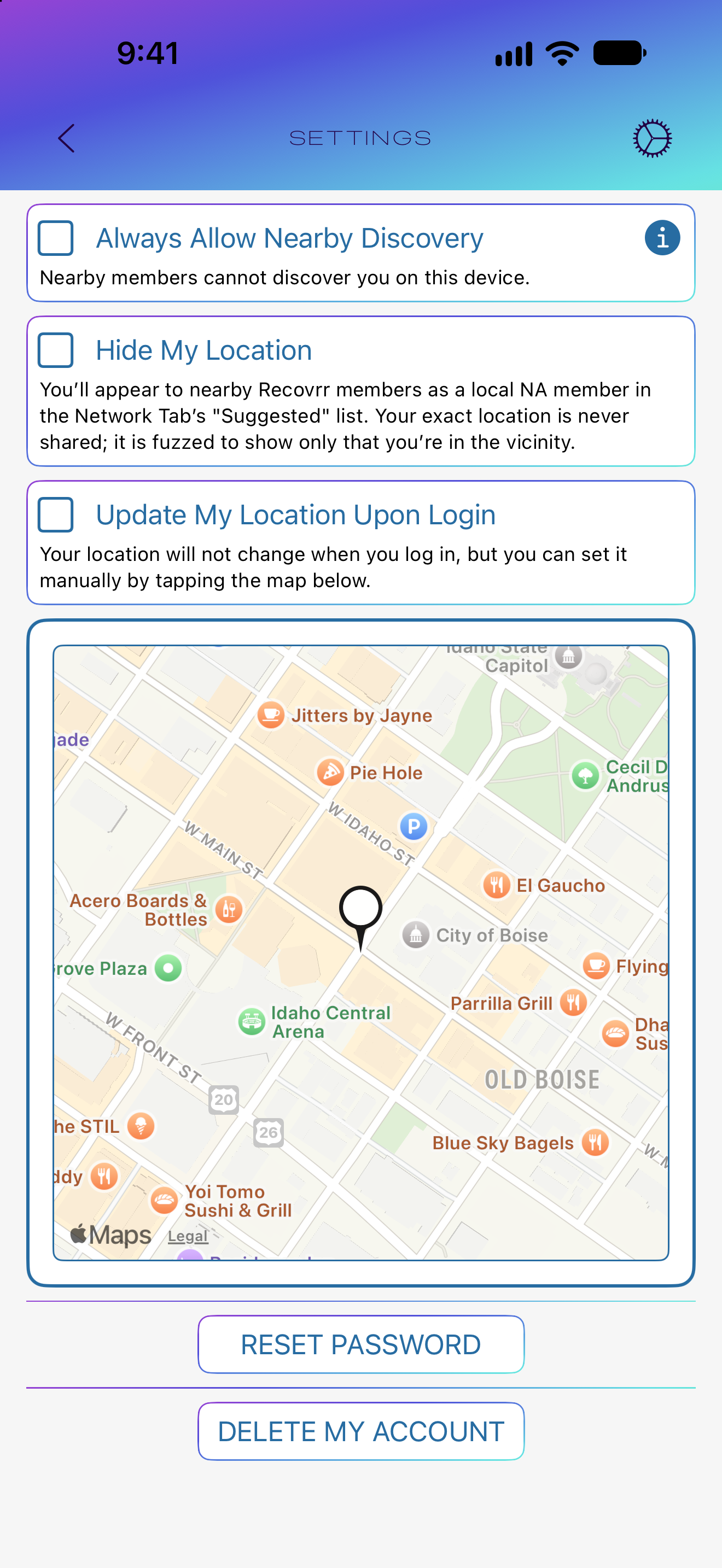
Settings · Nearby Discovery
Allow discovery whenever Recovrr is open
On supported devices, Always Allow Nearby Discovery appears below Use Google Maps, or at the top if that Maps option is unavailable. Tap the checkbox or its label to change it. On selects Always; Off stops discoverability. The explanation below changes with your choice.
Always allows nearby members to find you while Recovrr is open. It remains selected after a connection interaction until you turn it off. For a single interaction instead, turn Always off and use Allow Nearby Discovery Once in My Profile.
Discoverability starts Off and is a preference on this device. You can search In Person while your own discoverability is Off. Tap the information button at the right of the row to open the Nearby Discovery explanation.
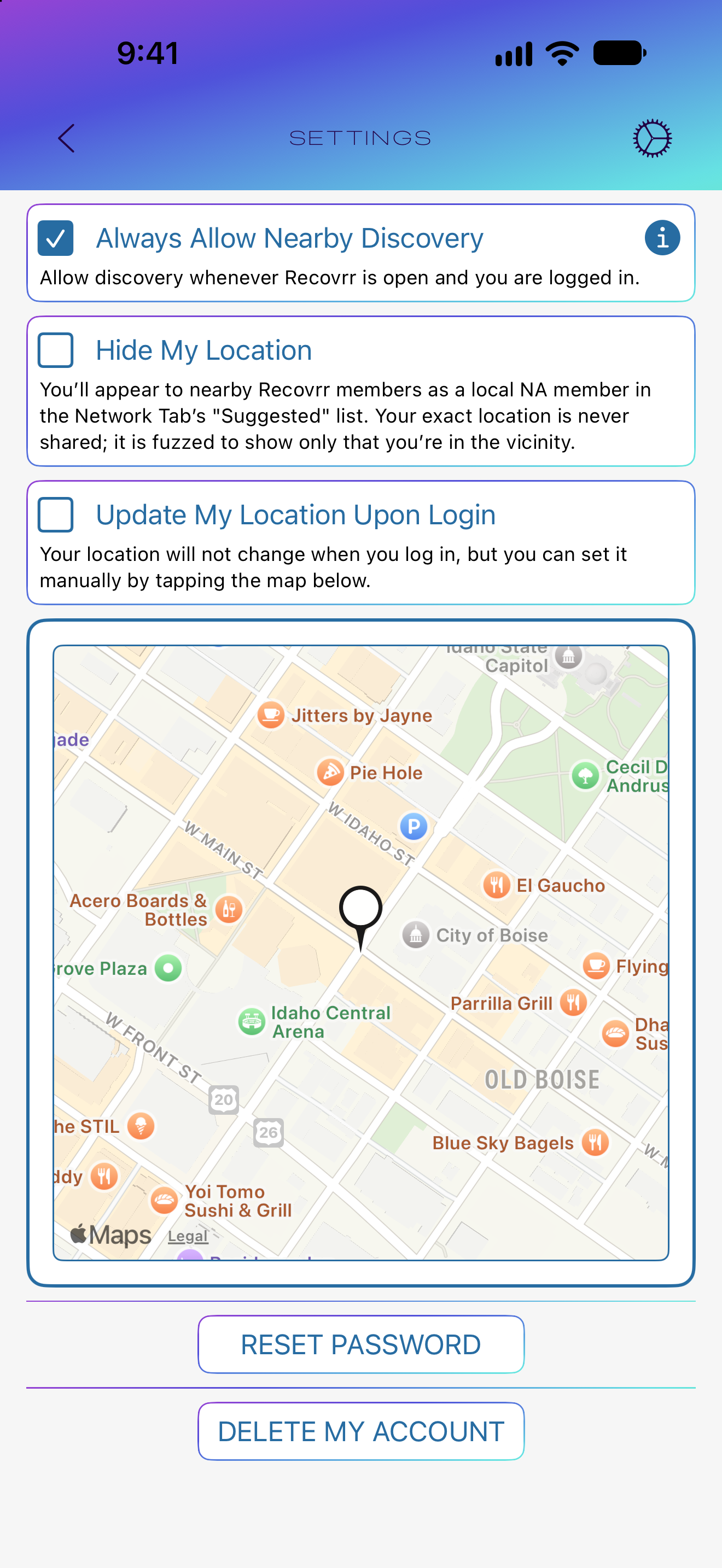
The information button
Read the Nearby Discovery explanation
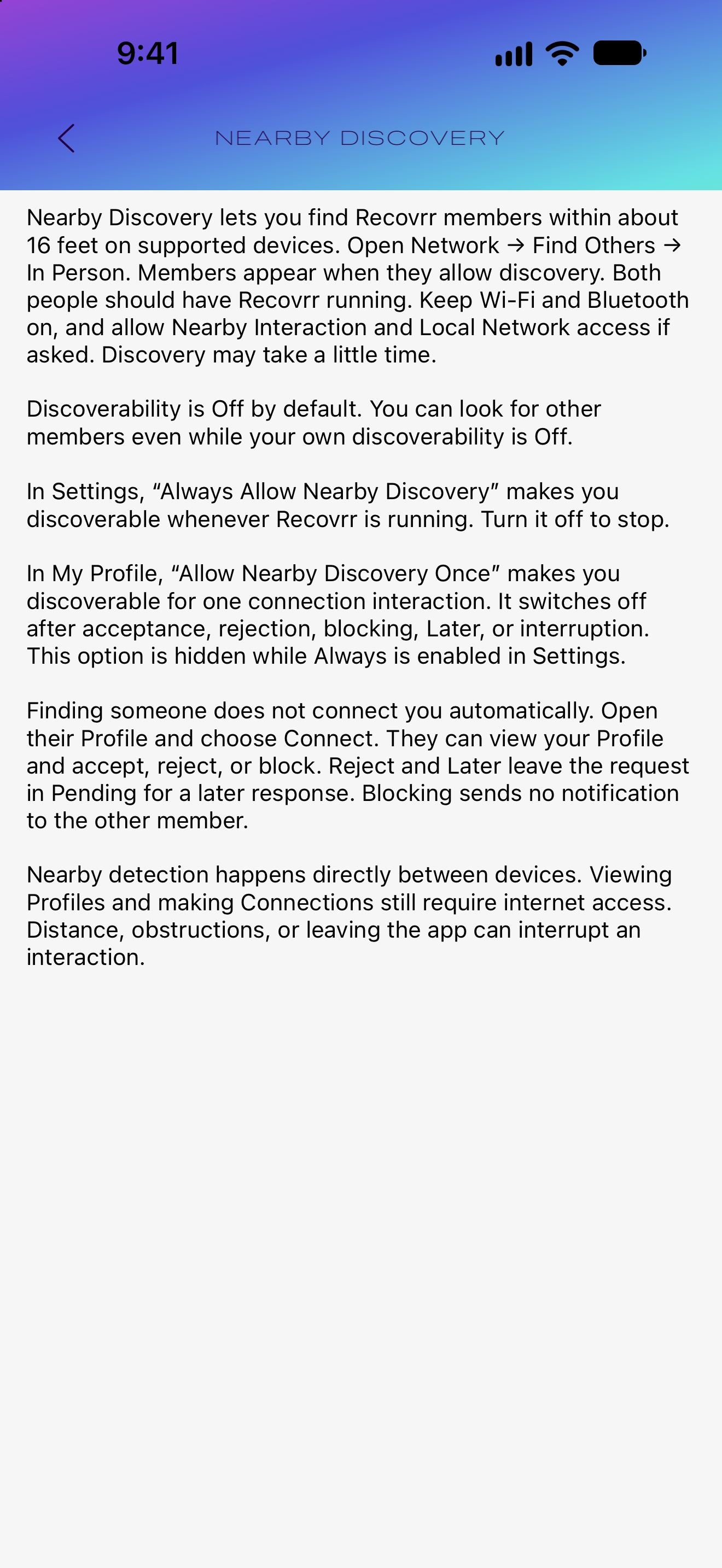
Tap the filled-circle information button at the right of either discovery checkbox to open NEARBY DISCOVERY.
This screen explains the nearby range, Always and One-Time choices, and the difference between local discovery and the Recovrr service used for Profiles and connection requests. Use the back button to return to the setting.
Settings
Choose how Recovrr maintains your location
When Hide My Location is off, Update My Location Upon Login becomes available. If enabled, Recovrr updates the stored location to the device’s current GPS location when you log in.
If automatic updating is off, the location map becomes interactive. Tap it to open the location-setting map, then move the marker or tap the map to choose a location manually.
Member discovery
Be available as a local resource
NA is built on members helping one another. Turning off Hide My Location makes you available for location-based discovery, so other signed-in Recovrr members in your general area can find your profile and request a connection.
This can make you a local resource for someone looking for a meeting, trying to connect with the local fellowship, or simply seeking another member nearby.
Settings
Adjust Home behavior in iOS Settings
Recovrr also exposes several longer-term preferences in the iOS Settings app. You can hide the My Next Meeting header, force Home to open to Nearby Meetings, and change the Nearby Meetings density threshold.
The density setting controls how many meetings Recovrr tries to find before its expanding nearby search stops. Normal is the default; lower or higher choices reduce or increase the target.
About and feedback
Get help, share the app, or send feedback
The logged-in About screen shows the app version and provides links to rate Recovrr, open these instructions, read the Privacy Policy, return to Get Started, open Recovrr settings in the iOS Settings app, and display an App Store QR code.
Choose Send Feedback to send a message to Recovrr administrators. If Send Anonymously is selected, the message contains no identifying information from your account; otherwise administrators can reply to the email address associated with the message.
Privacy and Anonymity
Your privacy choices in Recovrr: what you provide, what other members can see, how to change those choices, and how to delete your account.
Your identity
Choose how you identify yourself
Recovrr requires a valid email address for your account, but you do not have to use your legal or full name as your display name. Choose a display name appropriate for the level of anonymity you want.
If you use Sign in with Apple, Apple may initially offer your full name during account creation. Review that name before completing signup and change it there if you do not want it used. After your first login, you can change your Recovrr display name at any time by editing your profile.
Profile visibility
Know what other members can see
Only signed-in Recovrr members can use the member service. Your visible profile is limited, and most of its content is information you choose to provide. Some information is available only to connections.
| Information | Who can see it | Your control |
|---|---|---|
| Display name | Other Recovrr members | Required, but it can be any appropriate display name. Change it in Edit Profile. |
| Avatar | Other members viewing your profile; it may also appear as a thumbnail where appropriate | Optional. Add, replace, or remove it. |
| Tagline | Other Recovrr members viewing your profile | Optional. Edit or clear it. |
| Clean date | Other Recovrr members viewing your profile, if you provide it | Optional. Add, change, or remove it. |
| Phone number | Mutual connections only, if you provide it | Optional. Edit or remove it from your profile. |
| Meeting attendance | Your connections only | You decide whether to record yourself as attending a meeting next time or regularly. |
| Your relationship list | Private to you | Connections are established mutually; you can also change relationship state or block members where the app allows it. |
| Email address | Never displayed to other members | Required for the account. Recovrr can relay member-to-member email without exposing the private addresses to either member. |
| Geographic member discovery | Your Profile may appear in geographic member lists when you allow it. The app does not display your geographic coordinates or position on a map. | Hide My Location keeps you out of the Map’s geographic member list and Suggested. It does not prevent display-name Search or control In Person. |
| Nearby Discovery | Members using In Person may recognize your Profile and see an approximate distance between devices while you are discoverable. | Off by default. Use Always in Settings or One-Time in My Profile on supported devices. These are local controls, independent of Hide My Location. |
| Precise personal location | Never exposed to other members | When location is used for member discovery, Recovrr deliberately makes the location less precise. Meeting addresses are different and may be precise so people can find meetings. |
Location
Control location-based discovery
Providing a member location is optional. Geographic discovery uses a location deliberately made less precise. Turn on Hide My Location to stay out of the Map’s geographic member list and Suggested. Recovrr does not display another member’s geographic coordinates or position on a map.
Hiding your location does not hide your account from a display-name search. It also does not affect meeting locations: meeting addresses can be precise because members need them to find the meeting.
Nearby Discovery is separate. It works directly between nearby devices and can show approximate distance. Its discoverability setting stays on your device; it is not the geographic location-sharing setting. Profiles and connection changes still use the Recovrr service. For more detail about local exchanges and stored information, read the Nearby Discovery section of the App Privacy Policy.
Relationships and communication
Connections reveal only specific additional information
A connection is mutual: one member sends a request and the other accepts it. Your list of relationships is private. Connections can see information that is not available to other members, notably a phone number if you supplied one and meeting attendance that you chose to record.
Blocking is also reciprocal. If you block another member, neither of you can see the other through Recovrr. Recovrr retains enough information about the blocked relationship to enforce the block. You can manage and reverse your own blocks from the Blocked view.
Email remains private regardless of relationship. Recovrr’s email feature relays messages without revealing your account email address to the other member.
Account deletion
Delete your Recovrr account
Deleting the Recovrr app from your iPhone or iPad does not delete your account. Your account and server data remain until you delete the account itself.
To delete your account, open the main menu, choose Settings, scroll to the bottom, and choose Delete My Account. Recovrr asks you to confirm because deletion cannot be undone.
Account deletion permanently removes the account’s application data from the Recovrr server. Information outside the active Recovrr account database may not disappear immediately or may be controlled by another system—for example, messages already delivered to another person’s mailbox, information retained independently by Apple, ordinary server/security logs, backups that have not yet aged out, or records that must be retained for legitimate legal or security reasons. Those limited operational copies are not used to recreate an active deleted account.
Deleting the app may also leave login information in Apple’s keychain. Recovrr has a device-side history/login eraser for circumstances where locally stored login persistence must be removed.
Your choices
Privacy controls you can change
You can change optional profile information, hide your member location, manage connections and blocks, add or remove a phone number, change meeting attendance, control iOS permissions, clear locally stored login information, and delete your account.
Some choices necessarily affect functionality. For example, hiding your member location prevents location-based member discovery.
Privacy policies
Read the detailed privacy policies
This section is the practical guide to your privacy choices in Recovrr. For the formal description of the information Recovrr uses, stores, protects, and deletes, see the Recovrr App Privacy Policy.
Recovrr does not sell member information, use it for advertising, provide it to data brokers, or operate the member service as a source of commercial behavioral profiles.
Before You Log In
The screens and actions available when Recovrr is not signed in.
Sign in
Sign in to Recovrr
Enter the email address associated with your Recovrr account and your password, then sign in. Email addresses are matched without regard to letter case; passwords are case-sensitive.
After you have signed in successfully and later log out, Recovrr can retain your email address in the sign-in screen so you do not have to re-enter it.
Request an account
Request a Recovrr account
Choose Sign Up to request an account. Enter a valid email address that you can check, confirm the address, and provide the requested information about your interest in NA/recovery. You may also supply an initial display name.
The password is generated by the server; Recovrr administrators do not see it. If the request is approved, the sign-in credentials are sent to the email address you supplied.
Request an account
After you send the request
After the request is submitted, Recovrr alerts the administrators for review. If approved, Recovrr sends your sign-in credentials to the email address you supplied.
A request may also be rejected. Depending on the administrative response, you may receive an explanatory email or no further message.
Password help
Request a password reset
When you are logged out, password resets are requested through the Recovrr administrators rather than forced directly in the app.
Choose the reset-password option and enter the email address for the account that needs a reset.
About
Open instructions and app information
The logged-out About screen contains the information and actions that are useful before sign-in. You can open these instructions from there, or reach About by using its button on the initial screen or tapping the large Recovrr logo.